Change This One WiFi Setting to Kill Lag Instantly
Changing your WiFi channel is the single most effective free fix for slow speeds and lag in crowded neighborhoods. Your router broadcasts on a specific radio channel within its frequency band. When nearby routers crowd onto the same channel, they compete for airtime and slow everyone down. Picking a less congested channel takes under two minutes and requires no technical skill. This guide covers exactly how to do it on any router, plus which channels to pick.
What Is a WiFi Channel?
WiFi operates within two main frequency bands: 2.4 GHz and 5 GHz. Each band is divided into numbered channels, which are slices of the radio spectrum. Think of them as lanes on a highway. When multiple routers broadcast on the same channel, they take turns transmitting, which introduces delay and reduces throughput for everyone on that channel.
On the 2.4 GHz band, there are 11 channels available in North America (13 in Europe). Of those, only three are non-overlapping: channels 1, 6, and 11. Every other channel partially overlaps with its neighbors, which creates interference even when routers are technically on different channel numbers. This is the core reason 2.4 GHz gets congested fast in apartments or dense neighborhoods.
On the 5 GHz band, there are 24 or more non-overlapping channels depending on your router and region. This is one of the major structural advantages of 5 GHz and why it tends to be less congested even in dense areas.
How to Find Which Channel Is Least Congested
Before changing anything, find out what is around you. A free WiFi analyzer app does this in seconds.
- Windows: Open Command Prompt and type
netsh wlan show networks mode=bssid. The output lists every nearby network and its channel. Alternatively, apps like WiFi Analyzer (free on Microsoft Store) give you a visual graph. - Android: WiFi Analyzer by farproc (free on Google Play) shows a channel graph for 2.4 GHz and 5 GHz networks nearby.
- Mac: Hold Option and click the WiFi icon in the menu bar, then choose “Open Wireless Diagnostics.” Under Window, open Scanner to see nearby networks and channels.
- iPhone/iPad: Apple restricts channel scanning on iOS. Use a Mac or a WiFi analyzer on another device.
On 2.4 GHz, pick whichever of channels 1, 6, or 11 has the least activity. On 5 GHz, pick any channel with no nearby networks on it.
How to Change Your WiFi Channel: Step-by-Step
The exact menu names vary by router brand, but the path is identical on all of them.
- Find your router’s admin IP address. It is usually 192.168.1.1 or 192.168.0.1, printed on the router’s sticker. On Windows, type
ipconfigin Command Prompt and look for “Default Gateway.” - Open a browser, enter that IP address, and press Enter. A login page appears. Default credentials are on the router sticker, typically “admin/admin” or “admin/password.” Forgotten credentials require a factory reset.
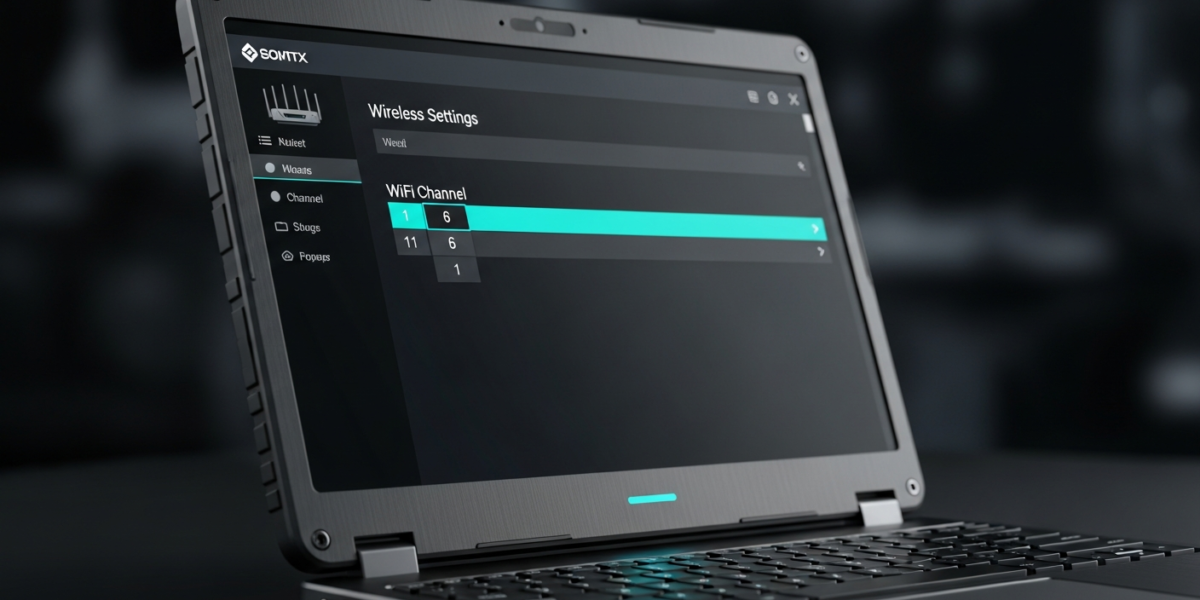
- Navigate to the wireless settings section. Look for tabs or menu items labeled “Wireless,” “WiFi,” or “Wireless Settings.” On some routers this is under “Advanced” or “Setup.”
- Find the channel setting for the band you want to change. If your router is dual-band, you will see separate settings for 2.4 GHz and 5 GHz. The channel is usually set to “Auto” by default.
- Change “Auto” to a specific channel number. For 2.4 GHz, choose 1, 6, or 11. For 5 GHz, choose a channel that your WiFi analyzer showed as empty or lightly used.
- Save the settings. The router will briefly restart its wireless radio. Connected devices will disconnect for a few seconds and reconnect automatically.
The entire process takes about two minutes. You do not need to reconfigure any devices after the change. They reconnect to the same network name on the new channel automatically.
2.4 GHz Channel Guide
| Channel | Non-overlapping | When to Use |
|---|---|---|
| 1 | Yes | Good default; often the busiest in dense areas |
| 6 | Yes | Good default; try this if channel 1 is crowded |
| 11 | Yes | Good default; often the least used of the three |
| 2, 3, 4, 5 | No | Avoid: overlap with channel 1 and 6 |
| 7, 8, 9, 10 | No | Avoid: overlap with channel 6 and 11 |
5 GHz Channel Guide
Channels 36 through 48 (UNII-1) are the most common in consumer routers and the most congested in dense areas. Channels 52 through 144 are DFS channels (Dynamic Frequency Selection), which routers must share with radar systems. Most consumer devices avoid them entirely, so selecting a DFS channel in the 52-144 range often gives you a clear lane with no competition. Channels 149 through 165 (UNII-3) are non-DFS but widely used, so congestion varies by location.
Should You Leave the Channel on Auto?
Auto channel selection runs a scan once at startup and then stays put, regardless of how congestion shifts during the day. Manual selection is more reliable on any consumer router sold before 2024. The exception: routers with documented background channel scanning (not just boot-time auto) can genuinely adapt. Check your router’s specs before assuming “Auto” means anything beyond boot-time behavior.
Other Interference Sources That Channel Changes Fix
Neighbor routers are not the only source of 2.4 GHz interference. The following devices broadcast in the 2.4 GHz band and can degrade your WiFi even on a lightly used channel:
- Microwave ovens (significant broadband interference when in use)
- Bluetooth devices (uses 2.4 GHz, though it frequency-hops and is usually minor)
- Baby monitors, especially older analog models
- Wireless security cameras and cordless phones on 2.4 GHz
If you identify a microwave or baby monitor as the culprit, switching your performance-sensitive devices to 5 GHz solves the problem more permanently than channel hopping on 2.4 GHz. Understanding how your router’s bands work gives you the tools to make that call. A dual-band router makes this easy since you can assign devices to whichever frequency avoids the interference.
Channel Width: The Setting Next to Channel Number
Most routers show a channel width setting alongside the channel number. On 2.4 GHz, 20 MHz is almost always the right choice in urban or suburban areas. The total usable spectrum on 2.4 GHz is only 83.5 MHz, so a 40 MHz channel eats most of it and destroys the non-overlapping channel structure. On 5 GHz, 80 MHz is the right default for modern routers and captures the bulk of 802.11ac and WiFi 6 speed gains without excessive congestion risk.
When Channel Changes Are Not Enough
If changing channels produces no improvement, the issue is likely not interference. Consider these other causes:
- Distance and obstructions: Concrete walls, floors, and metal fixtures attenuate WiFi signals regardless of channel.
- Outdated router hardware: A router from 2016 cannot deliver 2026 speeds no matter what channel it uses.
- ISP plan speed: No router fix increases your subscribed plan speed. Run a wired Ethernet test first to confirm the router is actually the bottleneck. If it is, check whether your hardware is overdue for a router performance review before spending money.
- Modem mismatch: If you have a DOCSIS 3.0 modem on a gigabit plan, the modem is the bottleneck. Understanding how modems and routers differ tells you exactly where your ceiling is before you buy anything new.
FAQ: Changing Your WiFi Channel
Will changing the WiFi channel disconnect my devices?
Yes, briefly. When the router switches channels, its wireless radio restarts, which drops all connected devices for roughly 5 to 15 seconds. They reconnect automatically to the same network name on the new channel. You do not need to re-enter any passwords.
Does changing the WiFi channel affect speed at the modem level?
No. Your internet plan speed is determined by your ISP and modem, not your WiFi channel. A channel change improves the wireless segment of your connection by reducing airtime competition. If your wired speed from the modem is already low, a channel change will not fix it.
How often should I change my WiFi channel?
Only when performance degrades and a fresh scan shows your current channel has become more congested. There is no routine maintenance schedule for this. New neighbors, new routers, and construction in the area can shift the congestion picture over months.
Can I use the same channel for both 2.4 GHz and 5 GHz?
Channel numbers on 2.4 GHz and 5 GHz refer to different slices of different frequency bands, so there is no overlap between them. Setting both to “channel 6” is not a conflict because they are physically separate parts of the radio spectrum.

Dean Prust was a reporter for Nebula Electronics, before becoming the lead editor. Dean has over fifty bylines and has reported on countless stories concerning all things related to technology. Dean studied at Caltech.