
How to Reset Your Router Password When You’re Locked Out
If you are locked out of your router’s admin panel, a 30-second factory reset using the recessed Reset button restores the default login credentials printed on the router’s label. If you still know the admin password but want to change it, log in via your browser and update it under the administration settings. This guide covers both scenarios plus WiFi-only password changes.
Two Different Passwords, Two Different Problems
Before doing anything, identify which password you are dealing with:
- WiFi password (network key): The password your phone and laptop use to connect to your WiFi network. Guests ask you for this one.
- Router admin password: The password for your router’s settings page (the web interface at something like 192.168.1.1). This controls your network configuration, port forwarding, guest networks, and WiFi channels.
Resetting one does not automatically reset the other unless you do a full factory reset. The steps below are organized by which scenario applies to you.
Scenario 1: You Forgot the Router Admin Password
Your only option here is a factory reset. There is no password recovery email for a router.
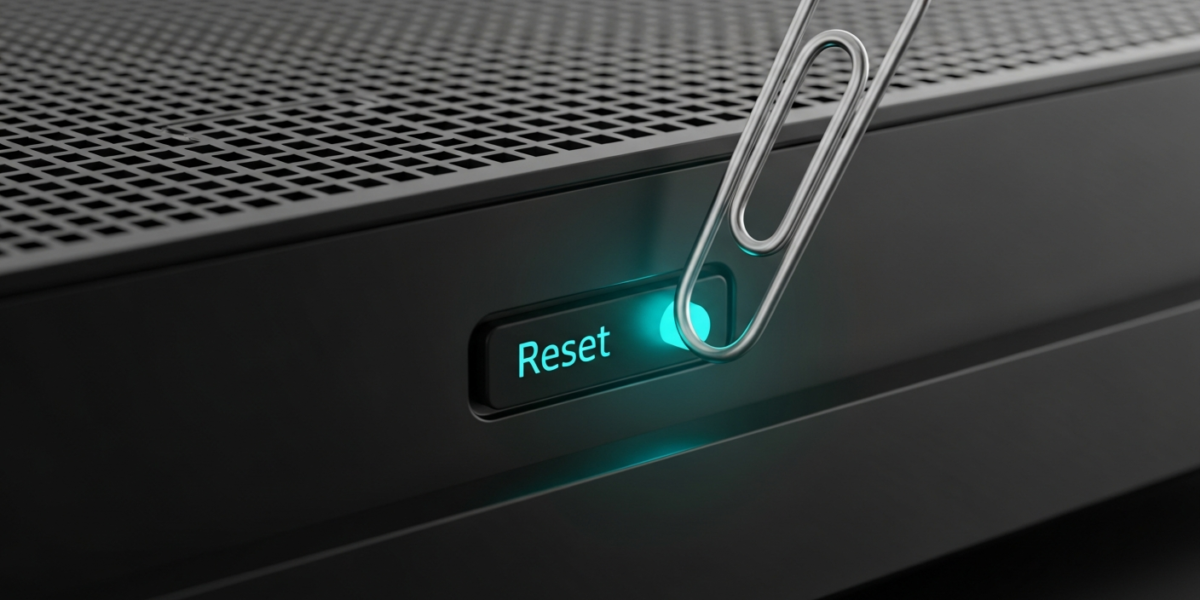
- Find the Reset button. On almost every home router it is a small recessed button on the back or bottom panel, labeled “Reset” or “Restore.” Some require a paperclip or pin to press it.
- Hold it for 10 to 30 seconds. The duration varies by manufacturer. Hold until the router’s indicator lights flash, go dark, or visibly change pattern. Linksys and Netgear typically need 10 seconds. TP-Link usually needs 10 seconds. ASUS may need up to 30 seconds.
- Wait for the router to reboot. This takes 60 to 90 seconds. Do not unplug it during this process.
- Log in with default credentials. These are printed on the label on the underside or back of the router. Common defaults: admin/admin, admin/password, or admin/[blank]. The label will show the exact values.
After regaining access, immediately change both the admin password and the WiFi password to something you control. Write them down somewhere safe, or store them in a password manager.
A factory reset also resets your WiFi name and password to the factory defaults (also on the label). You will need to reconnect every device in your home after the reset completes.
Scenario 2: You Know the Admin Password and Want to Change It
No factory reset needed. Log in and update it directly.
- Find your router’s IP address. On Windows: open Command Prompt and type
ipconfig. Look for “Default Gateway” under your active network adapter. It is usually192.168.1.1or192.168.0.1. On Mac: open System Settings, click Wi-Fi, click Details on your network, and the router address appears in the TCP/IP tab. - Type that IP address into your browser’s address bar and press Enter. The router’s login page appears.
- Log in with your current admin credentials.
- Go to the admin password setting. The location varies by manufacturer:
- TP-Link: Advanced > System > Administration > Account Management
- Netgear: Advanced > Administration > Set Password
- ASUS: Administration > System > Router Login Password
- Linksys: Connectivity > Administration > Router Password
- Enter the new password and save. Use a strong password of at least 12 characters that is different from your WiFi password. The router will log you out automatically.
- Log back in with the new password to confirm it works before closing the browser.
Scenario 3: You Want to Change Only the WiFi Password
This is the most common request and does not require a factory reset. Log into the router admin page as described above, then:
- Go to Wireless or WiFi Settings (sometimes under a “Basic” or “Setup” tab).
- Find the Security Key, Pre-Shared Key, or Passphrase field under WPA2 or WPA3 settings.
- Delete the old password and type the new one. Minimum 8 characters for WPA2; 12 or more is recommended.
- Save and apply. The router broadcasts the new password immediately.
- Reconnect all your devices with the new password.
- Update any smart home devices, printers, or streaming sticks that use the saved WiFi credential.
If your router is dual-band, you will see separate password fields for the 2.4 GHz and 5 GHz networks. Change both, or set them to the same password for simplicity. For more context on how these two bands differ, the dual-band router explainer breaks it down clearly.
What a Factory Reset Actually Erases
A full factory reset removes everything you configured, including:
| Setting | Reverts to |
|---|---|
| Admin username and password | Factory default (on the label) |
| WiFi name (SSID) | Factory default (on the label) |
| WiFi password | Factory default (on the label) |
| Port forwarding rules | Cleared |
| Guest network settings | Disabled |
| Custom DNS servers | ISP default |
| WiFi channel settings | Auto |
| Parental controls | Cleared |
Your internet connection itself is not affected; your ISP’s modem (or the modem-router combo’s modem side) handles that independently. On the difference between the two devices, see the full breakdown in the modem vs router guide.
After a Reset: Harden Your Router Security
A factory reset puts you back at defaults, which means default credentials that are public knowledge. Do these four things before anything else:
- Change the admin password. Never leave it as “admin/admin.”
- Change the WiFi password. The factory default on the label is fine security-wise but anyone who glanced at your router can connect forever if you do not change it.
- Disable remote management. This is the option that lets you access your router admin panel from outside your home network. It should be off for almost every home user.
- Check your WiFi channel setting. After a reset it defaults to “Auto,” which may not be optimal in a crowded apartment building. The guide on how to change your WiFi channel explains which channel to pick.
Frequently Asked Questions
Will resetting my router password disconnect me from the internet?
Changing the admin password alone does not disconnect any devices. A factory reset does disconnect everything because it also resets the WiFi name and password to factory defaults. All devices will need to reconnect using the credentials on the router’s label.
I held the Reset button for 30 seconds and nothing happened. What is wrong?
Three likely causes: the button requires a sharper pin (some Reset buttons need a straightened paperclip, not a blunt object), you are pressing the wrong button (some routers have a WPS button nearby that looks similar), or the router needs a longer hold (try 45 seconds on stubborn ASUS models). If indicator lights never changed during the hold, you likely missed the button.
Can I reset just the admin password without resetting the WiFi password?
Only if you can still log into the admin panel with a working password. If you are locked out, a factory reset is the only option, and that resets all stored credentials including the WiFi password. There is no partial reset function on consumer routers.
My router does not have a Reset button. What do I do?
Most ISP-provided modem-router combos have the reset function accessible via the admin interface itself (under Administration or Maintenance). If the admin panel is also inaccessible, contact your ISP. They can send a remote reset signal to their leased hardware. For routers you own outright with no Reset button, check the manufacturer’s documentation for a reset procedure via the serial port or a mobile app.

Dean Prust was a reporter for Nebula Electronics, before becoming the lead editor. Dean has over fifty bylines and has reported on countless stories concerning all things related to technology. Dean studied at Caltech.