How to Share Your WiFi Password Without Saying It Out Loud
On any modern iPhone, Android, or Mac, sharing your WiFi password takes under 10 seconds and the recipient never types a character. Three methods cover every device combination: iPhone tap-to-share, a QR code from Android’s built-in settings, and a universal QR code generator that works on any device.
The Fastest Method: iPhone to iPhone (or iPhone to Mac)
Apple built a one-tap share into iOS 11 and later. The process takes about eight seconds once both devices are in position.
- Make sure both devices have Bluetooth and WiFi turned on.
- Have the recipient unlock their device and open Settings > WiFi so the network appears in their list.
- Bring the two phones within about a foot of each other.
- On your phone (the one already connected), a prompt appears: “Share WiFi with [Name]?” Tap Share Password.
- The recipient’s device connects automatically. No typing required.
- Both devices can now move away from each other once the connection confirms.
This works between any two devices signed into Apple IDs that are saved in each other’s Contacts. If the prompt does not appear, check that both phones are unlocked, Personal Hotspot is off on both, and the recipient’s Apple ID email is in your Contacts app.
Android to Android: Use the QR Code Built Into the OS
Android 10 and later generates a QR code for any saved network directly from the WiFi settings screen. No third-party app needed.
- Open Settings > Network & Internet > WiFi.
- Tap the network you are connected to.
- Tap the Share icon (a QR code square on most skins) or look for a “Share” button beneath the network name.
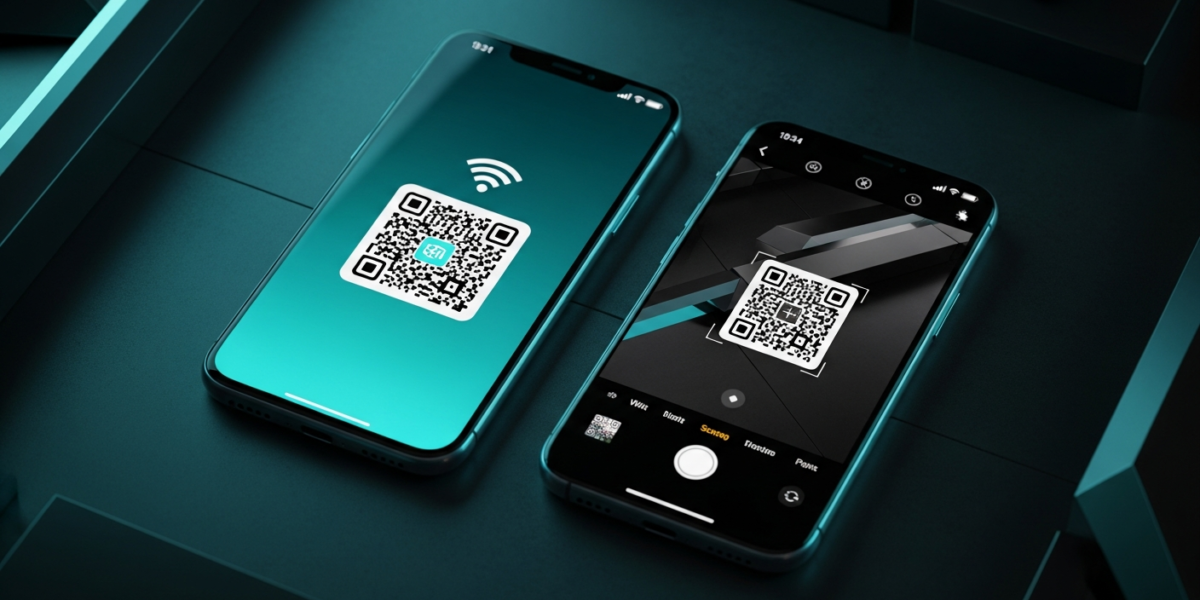
- Your phone displays a QR code. The guest opens their Camera app, points it at the code, and taps the notification that appears.
On Samsung devices running One UI, the QR code appears after tapping the gear icon next to the connected network name, then selecting QR code. The process is identical from the recipient side.
How to Share WiFi via QR Code With Any Guest (Cross-Platform)
A QR code is the most universal method because it works between any devices, including older phones, tablets, and Chromebooks. You generate the code once and can print it or save it as an image.
- Go to qifi.org in a browser (free, no account required, runs entirely in your browser, nothing is sent to a server).
- Enter your Network SSID (the WiFi name exactly as it appears, case-sensitive), choose the security type (WPA/WPA2 for most home routers), and enter your password.
- Click Generate and a QR code appears on screen.
- Right-click and save the image, or print it and tape it inside a kitchen cabinet or by the front door.
- Guests open their Camera app, scan the code, and connect instantly.
- Swap the QR code image if you ever change your password.
If you want to skip the third-party site entirely, any modern Android phone can generate the same code natively as described in the section above, and you can screenshot it for printing.
How to Find Your WiFi Password When You Have Forgotten It
Before you can share your password, you need to know it. Here is where to find it on each platform.
On Windows 11
- Open Settings > Network & Internet > WiFi, click the connected network, then click View Wi-Fi security key.
- Alternatively: open Control Panel > Network and Sharing Center > [Network Name] > Wireless Properties > Security tab, then check Show characters.
On macOS
- Open System Settings > WiFi, click the network name, then click the i icon and select Copy Password (you will be prompted for your Mac login password).
- Alternatively, search for the network name in Keychain Access and check Show password.
From Your Router Admin Page
- Open a browser and type your router’s default gateway into the address bar. For most home routers this is
192.168.1.1or192.168.0.1. You can confirm it by runningipconfigin Windows Command Prompt and looking for “Default Gateway.” - Log in with your router credentials (the username and password on the label on the bottom of your router, unless you changed them).
- Go to Wireless > Wireless Security or similar. Your password appears in plain text here.
If you have lost your router login credentials too, see our guide on how to reset a router password when you are locked out. For background on why your router and modem are separate devices, the modem vs router explainer covers it clearly.
Guest Networks: Share WiFi Without Sharing Your Main Password
Most routers built after 2018 support a guest network, a separate SSID that gives internet access but isolates guests from your main local network and smart home devices. This is the right long-term solution for Airbnb hosts, small businesses, or anyone who regularly has visitors.
- Log into your router admin page (steps above).
- Find Wireless > Guest Network or similar.
- Enable the guest network, set a simple password you are comfortable saying out loud, and set a bandwidth limit if available (10 Mbps is plenty for guests).
- Enable the Client Isolation setting so guests cannot see your other devices.
A guest network also means you never have to change your main password when guests leave. Your dual-band router can run the guest network on 2.4 GHz (longer range, good for guests in different rooms) while your main devices stay on the faster 5 GHz band.
Troubleshooting: Why the iPhone Share Prompt Does Not Appear
| Symptom | Likely cause | Fix |
|---|---|---|
| No prompt on either phone | Bluetooth off or devices too far apart | Enable Bluetooth, bring phones within 12 inches |
| Prompt appears but tapping does nothing | Personal Hotspot enabled on one device | Disable Personal Hotspot before sharing |
| Recipient not in Contacts | Apple ID email not saved to Contacts | Add their Apple ID email to your Contacts app |
| Older iPhone (pre-iOS 11) | Feature not supported | Use QR code method instead |
Frequently Asked Questions
Can I share my WiFi password from an iPhone to an Android phone?
Not directly via the Apple tap-to-share feature, which is Apple-only. Use the QR code method instead: generate the QR code from your Android or router admin page and have the iPhone scan it with its Camera app. The camera app on any iPhone running iOS 11 or later reads QR codes natively.
Is it safe to use a QR code generator website for my WiFi password?
Sites like qifi.org generate the QR code entirely inside your browser using JavaScript. Your password is never sent to their server. You can verify this by disconnecting from the internet before generating the code and confirming it still works. That said, the safest option is always the native QR code generator built into Android, which keeps everything on-device.
How do I share WiFi with a smart TV that has no camera?
Smart TVs require you to enter the password manually. Find your password using one of the methods in the “How to Find Your WiFi Password” section above, then enter it using the TV remote. If your TV supports WPS (Wi-Fi Protected Setup), you can also press the WPS button on your router within two minutes of selecting the network on the TV, and it connects without a password.
Does sharing my WiFi password expose my router admin credentials?
No. Your WiFi password (the one guests use to join the network) and your router admin password (the one you use to log into the router settings page) are two completely separate credentials. Sharing the WiFi password gives network access only. Router admin access is protected separately.

Dean Prust was a reporter for Nebula Electronics, before becoming the lead editor. Dean has over fifty bylines and has reported on countless stories concerning all things related to technology. Dean studied at Caltech.