
How to Connect Any TV to WiFi (Even Old Ones)
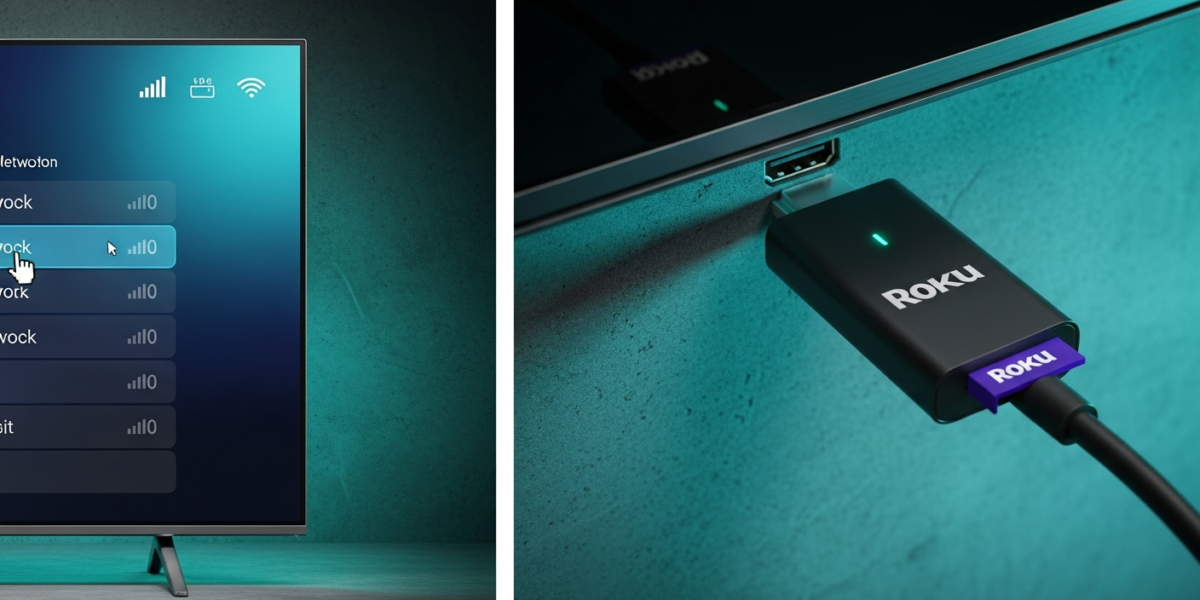
Connecting a TV to WiFi takes under three minutes on any smart TV made after 2015. Open Settings, go to Network or WiFi, select your network, enter the password, and you are done. If your TV is older and lacks built-in WiFi, a $30 streaming stick handles it in exactly the same time. This guide covers every scenario: smart TV, streaming device, and even a wired TV you want to go wireless.
What You Need Before You Start
Before touching the TV remote, have these ready:
- Your WiFi network name (SSID)
- Your WiFi password (check the sticker on the back of your router if you have never changed it)
- The TV remote with a Home or Menu button
Your TV stays connected between power cycles, so you only go through this setup once. If your router broadcasts on both 2.4 GHz and 5 GHz, pick the 5 GHz band for streaming 4K. Pick 2.4 GHz if your TV is in a far room or behind walls. For a detailed breakdown of the two bands, see the guide to dual-band routers and which band to use.
How to Connect a Smart TV to WiFi (Samsung, LG, Sony, TCL, Hisense)
The menu labels differ slightly by brand, but the path is identical on every major smart TV platform.
- Press Home or the gear icon on your remote to open the main menu.
- Navigate to Settings (sometimes shown as a gear or wrench icon).
- Select Network or General > Network (Samsung) or All Settings > Network > Wi-Fi Connection (LG).
- Choose Wireless Setup or Connect via Wi-Fi.
- Wait for the TV to scan. Your network name will appear in the list within 5 to 10 seconds.
- Select your network and enter the password using the on-screen keyboard. Use the number keys to switch between letters and numbers faster.
- Select Connect or OK. The TV confirms with “Connected” or shows the signal strength bars.
Samsung-Specific Path
Press Home, go to Settings, select General, then Network, then Open Network Settings, and choose Wireless. Samsung TVs running Tizen OS (2016 and newer) follow this exact sequence.
LG WebOS Path
Press the Settings button (the gear on the magic remote), go to All Settings, select Network, then Wi-Fi Connection. LG’s WebOS 6 and newer shows a simplified WiFi card on the main settings screen, so it may only take two clicks.
Sony Google TV and Android TV Path
Press Home, select the Settings gear, go to Network & Internet, choose Wi-Fi, and select your network. Sony models running Google TV (2021+) will also prompt you to sign into your Google account after connecting.
How to Connect a Roku, Fire Stick, or Apple TV to WiFi
Streaming devices do the heavy lifting for TVs that lack built-in smart features. Setup on any of them runs through the device’s own menu, not the TV’s.
Roku
- Press Home on the Roku remote.
- Go to Settings > Network > Set up connection > Wireless.
- Select your network from the list and enter the password.
Amazon Fire Stick or Fire TV
- From the Fire TV home screen, go to Settings > Network.
- Select your WiFi network.
- Enter the password. Fire TV shows a larger keyboard layout that is easier to use than most smart TV keyboards.
Apple TV (4K or HD)
- Go to Settings > Network > Wi-Fi.
- Select your network and enter the password. If you have an iPhone or iPad on the same Apple ID, iOS will offer to auto-fill the password when both devices are near each other.
How to Connect an Old TV Without Built-In WiFi
If your TV has an HDMI port and no internet, you have three options:
| Option | Cost | Best for |
|---|---|---|
| Roku Streaming Stick 4K | $30 | Most people; best remote app support |
| Amazon Fire Stick 4K Max | $40 | Amazon Prime users, Alexa voice control |
| Google Chromecast with Google TV | $30 | Android phone households, Google ecosystem |
Plug the stick into the TV’s HDMI port, power it via the included USB cable (use the wall adapter, not the TV’s USB port for power reliability), and follow the on-screen setup. Total time: 4 to 6 minutes including account sign-in.
TV Connected but No Picture or Buffering Constantly
Connection success does not always mean fast streaming. These are the most common follow-up problems and their fixes:
- Password rejected: TV keyboards auto-capitalize the first character. Most WiFi passwords are case-sensitive. Try again and watch the first letter.
- Network found but won’t connect: Restart your router first (unplug 30 seconds, replug). The issue is almost always on the router side, not the TV.
- Buffering on 4K content: You need at least 25 Mbps sustained throughput at the TV for 4K. Move the router closer, or switch to a dedicated WiFi adapter if you are connecting a PC or a gaming setup in the same room. For the TV itself, a powerline adapter ($30) is often faster than WiFi across floors.
- WiFi drops after 30 minutes: This is nearly always a 2.4 GHz congestion problem. Switch the TV to your 5 GHz network, or follow the steps to change your WiFi channel and move the 2.4 GHz band off channel 6, which gets the most interference.
- TV shows “connected” but apps say no internet: Check DNS. Go to your network settings on the TV and try setting DNS manually to 8.8.8.8 (Google) or 1.1.1.1 (Cloudflare). This fixes roughly 70% of “connected but no internet” issues on smart TVs.
How to Improve WiFi Signal Strength at the TV
WiFi speed degrades fast across walls and floors. Before buying a range extender or mesh node, try these in order:
- Move your router to a central, elevated position (shelf or tabletop, not on the floor behind furniture).
- Switch the TV to 5 GHz if it is within 30 feet of the router with no concrete walls between them.
- If walls are an issue, use 2.4 GHz but change to channel 1 or 11 to avoid overlap with neighboring networks.
- Run a speed test on the TV’s built-in network diagnostics or through the app (most Roku and Fire TV devices have a speed test option in the network menu). If you get above 25 Mbps, the problem is the streaming service, not your WiFi.
For persistent dead zones, a targeted WiFi fix guide covers mesh systems, powerline adapters, and MoCA adapters in detail.
Frequently Asked Questions
Why won’t my TV connect to WiFi even though the password is correct?
The most common causes are a crowded 2.4 GHz channel, a router that needs a reboot, or a TV firmware update that is waiting in the background. Restart the router first, then check the TV’s software update menu. If neither works, forget the network on the TV and reconnect from scratch.
Can I connect a non-smart TV to WiFi?
Yes. Plug a streaming stick (Roku, Fire Stick, Chromecast) into any HDMI port. The streaming device connects to WiFi independently and turns any HDMI TV into a smart TV. The TV itself stays dumb; the stick does all the work.
Does connecting a TV to WiFi use a lot of data?
Netflix at HD uses about 3 GB per hour. 4K HDR uses roughly 7 GB per hour on Netflix and up to 15 GB per hour on Apple TV Plus at maximum quality. If you are on a capped internet plan, streaming for two hours in 4K daily can exceed 900 GB per month.
Should I use 2.4 GHz or 5 GHz for my TV?
Use 5 GHz if your TV is within 30 feet of the router with minimal walls between them. Use 2.4 GHz for longer distances or rooms separated by concrete or brick. The 5 GHz band offers higher speeds; 2.4 GHz offers better range.

Dean Prust was a reporter for Nebula Electronics, before becoming the lead editor. Dean has over fifty bylines and has reported on countless stories concerning all things related to technology. Dean studied at Caltech.