The WiFi Adapter That Fixes Slow PC Internet for $20
A WiFi adapter is a small USB or PCIe device that gives your desktop or laptop wireless internet access without opening the case or running cables. The best USB option for most people is the TP-Link Archer T3U Plus at around $20: it supports WiFi 5 (802.11ac), dual-band, and delivers 400 Mbps on 2.4 GHz or 867 Mbps on 5 GHz. Plug it in, install the driver, and you are online in under two minutes.
USB vs PCIe WiFi Adapter: Which One Do You Actually Need
Two form factors exist. The right one depends on your use case, not your budget.
| Type | Speed ceiling | Installation | Best for |
|---|---|---|---|
| USB (nano, standard, high-gain) | Up to WiFi 6 (1.8 Gbps theoretical) | Plug and play, no tools | Laptops, quick desktop fix, renters, portability |
| PCIe internal card | Up to WiFi 6E (2.4 Gbps theoretical) | Requires opening the PC case | Gaming desktops, permanent install, lowest latency |
For a laptop, USB is your only practical option. For a desktop where you want the best possible performance and do not mind opening the case once, a PCIe card like the Intel AX210 ($25) supports WiFi 6E and Bluetooth 5.3, which a USB adapter cannot match.
For everyone else: a USB adapter with an external antenna is the right call. The external antenna design outperforms nano USB adapters meaningfully in real-world use because it can be positioned for line-of-sight to the router.
WiFi Standards: What the Numbers on the Box Mean
WiFi adapter boxes use marketing names (WiFi 5, WiFi 6, WiFi 6E) and IEEE spec numbers (802.11ac, 802.11ax) interchangeably. Here is what each generation actually delivers:
| Standard | Marketing name | Max theoretical speed | Bands |
|---|---|---|---|
| 802.11n | WiFi 4 | 600 Mbps | 2.4 GHz, 5 GHz |
| 802.11ac | WiFi 5 | 3.5 Gbps | 5 GHz only (some models add 2.4 GHz) |
| 802.11ax | WiFi 6 | 9.6 Gbps | 2.4 GHz, 5 GHz |
| 802.11ax (6 GHz) | WiFi 6E | 9.6 Gbps | 2.4 GHz, 5 GHz, 6 GHz |
Theoretical maximums are never reached in practice. A real-world WiFi 5 USB adapter on a clear 5 GHz channel delivers 300 to 500 Mbps to a PC about 20 feet from the router. If your internet plan is under 200 Mbps, any WiFi 5 adapter will fully saturate it. WiFi 6 only matters if your internet plan exceeds 500 Mbps and your router also supports WiFi 6. Match the adapter to your router, not to the marketing spec on the box.
The Best WiFi Adapters by Use Case
Best overall: TP-Link Archer T3U Plus (USB, WiFi 5)
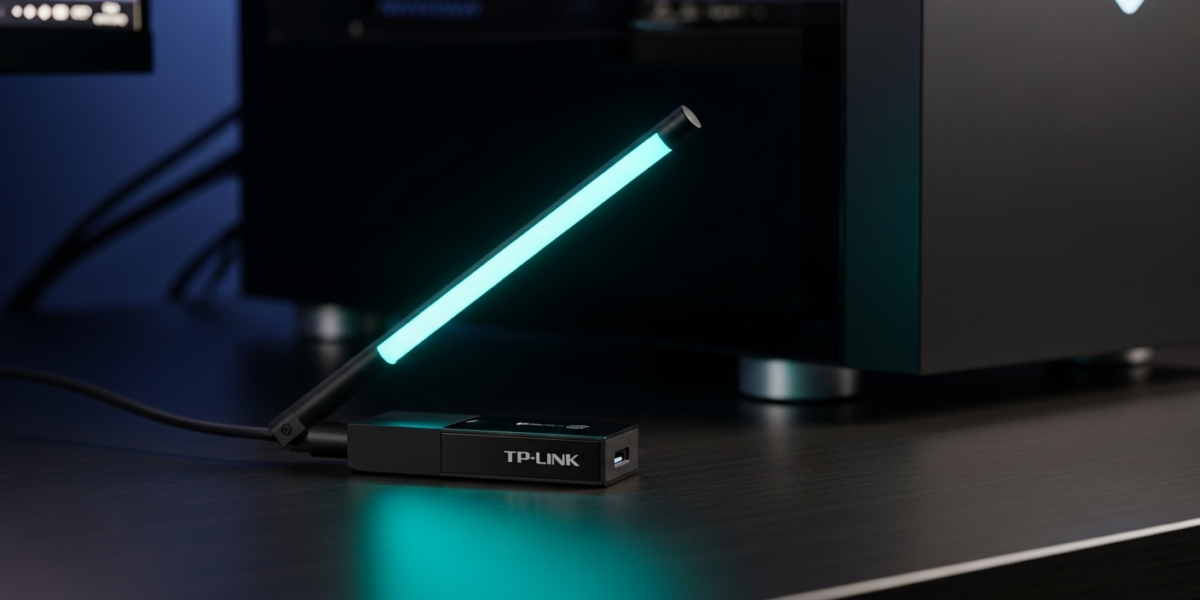
The high-gain folding antenna is the key differentiator. It can be positioned vertically for maximum signal and folded flat when the PC moves. Dual-band, up to 867 Mbps on 5 GHz, $18 to $22. Works out of the box on Windows 10 and 11; Mac and Linux require a manual driver install from TP-Link’s site.
Best for gaming and low latency: Intel AX210 (PCIe, WiFi 6E)
The AX210 is a half-height M.2 card that fits any modern desktop with an M.2 slot or a PCIe x1 slot via an included adapter. It supports 2.4 GHz, 5 GHz, and 6 GHz simultaneously, and its latency under load is measurably lower than USB adapters because it bypasses USB overhead entirely. Price: $25 to $30. Requires Windows 10 version 1903 or later.
Best budget nano adapter: TP-Link TL-WN725N (USB, WiFi 4)
For basic web browsing and video calls on a plan under 50 Mbps, the TL-WN725N at $8 to $10 is adequate. It is a 2.4 GHz-only WiFi 4 device, so do not use it for streaming 4K or gaming. It works purely as a convenience adapter for light use or travel.
How to Install a USB WiFi Adapter on Windows
- Plug the USB adapter into a USB port. Use a USB 3.0 port (blue) if your PC has one; it delivers more stable power than USB 2.0.
- Windows 10 and 11 will attempt automatic driver installation from Windows Update. Wait 30 seconds before opening anything.
- Click the WiFi icon in the taskbar (bottom right). If your networks appear, the automatic driver worked. Select your network and connect.
- If no networks appear, open Device Manager (right-click Start), find the adapter under Network adapters, right-click it, and select Update driver > Search automatically.
- If that fails, go to the manufacturer’s website (TP-Link, Netgear, Asus), search your exact model number, and download the Windows driver manually. Run the installer, reboot, and connect.
How to Get the Fastest Speed From Your WiFi Adapter
Hardware alone does not determine speed. These settings and placement habits make a measurable difference:
- Always use 5 GHz. Open your network adapter properties, click Configure, go to the Advanced tab, find Preferred Band or Band Preference, and set it to 5 GHz. This forces the adapter to connect to the faster band instead of defaulting to 2.4 GHz.
- Position the antenna for line-of-sight. On external-antenna USB adapters, orient the antenna vertically and angle it toward the router. Moving the adapter six inches can change signal strength by 10 to 20 dBm.
- Use a USB extension cable. If the back of your desktop is facing a wall, the case itself blocks signal. A $5 USB extension cable lets you position the adapter on top of the desk with clear line-of-sight.
- Disable power saving on the adapter. In Device Manager, open adapter properties, go to Power Management, and uncheck “Allow the computer to turn off this device to save power.” Windows throttles WiFi adapters aggressively in power-saving mode, which causes speed drops and disconnections.
If your router is the bottleneck rather than the adapter, fixing its channel or placement first will do more than any hardware upgrade. The guide on fixing a weak WiFi signal covers router-side fixes in order of impact. And if you are not sure whether your router even supports dual-band, the dual-band router explainer tells you exactly what to look for on the label.
When a WiFi Adapter Is Not Enough
A WiFi adapter solves the “no wireless card” problem. It does not solve signal weakness caused by distance, walls, or router placement. If you install an adapter and still get under 50 Mbps when your plan delivers 300 Mbps, the issue is signal quality, not the adapter. Run a speed test plugged directly into the router with an ethernet cable. If that test shows full speed, the WiFi path is the problem and you need to address range and interference rather than swap the adapter.
For persistent signal problems between the router and the PC location, a powerline ethernet kit ($40) or a WiFi channel change often delivers more improvement than a new adapter.
Frequently Asked Questions
Will a WiFi adapter work on any PC?
Any PC with a USB port can use a USB WiFi adapter. Windows 10 and 11 support most adapters with automatic driver installation. Older Windows versions and some Linux distributions may need manual driver installs from the manufacturer’s site. Mac support varies by adapter brand; TP-Link and Plugable both publish macOS drivers.
Do WiFi adapters slow down your internet?
A WiFi adapter introduces slightly more latency than a wired ethernet connection, typically 1 to 3 ms additional round-trip time. For browsing and streaming, this is imperceptible. For competitive gaming where sub-10ms ping matters, a wired connection or an internal PCIe adapter will outperform a USB adapter.
What is the difference between a WiFi adapter and a WiFi extender?
A WiFi adapter adds wireless capability to a single device (your PC). A WiFi extender rebroadcasts your router’s signal to cover a larger area for all devices. They solve different problems. If only your PC lacks wireless, get an adapter. If multiple devices in a far room have weak signal, get an extender or a mesh node.

Dean Prust was a reporter for Nebula Electronics, before becoming the lead editor. Dean has over fifty bylines and has reported on countless stories concerning all things related to technology. Dean studied at Caltech.