9 Ways to Fix a Weak WiFi Signal Today
A weak WiFi signal is almost always caused by one of three things: your router is in the wrong place, you are on an overcrowded channel, or your hardware is simply too old. Most homes can recover 40 to 60 percent of lost speed before spending a dollar, just by moving the router and switching channels. This guide ranks nine fixes from free to paid, so you try the costless options first.
Fix 1: Move Your Router to the Center of Your Home
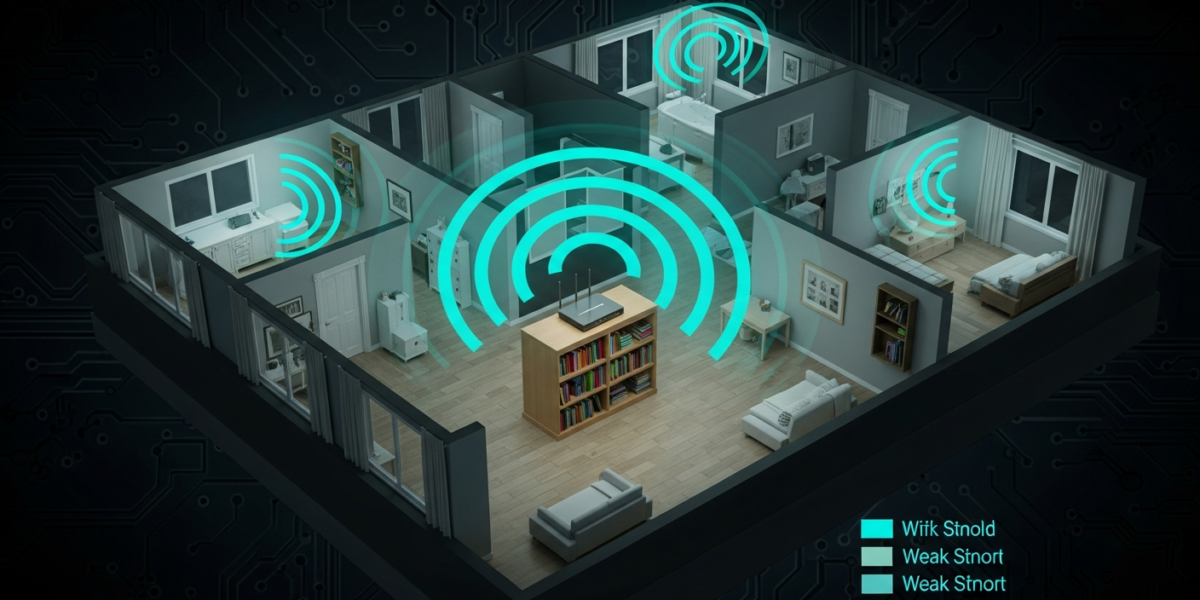
Router placement is the single highest-impact fix, and it costs nothing. WiFi signals radiate outward in a sphere. If your router sits in a corner or against an exterior wall, roughly half that sphere broadcasts into your yard or your neighbor’s apartment.
Move the router to a central, elevated location: a bookshelf, an entertainment center, or a hallway table near the middle of the floor plan. Elevation matters because routers broadcast slightly downward. A router on the floor loses 20 to 30 percent of usable range compared to the same router at desk height.
Keep it away from: microwaves (they operate at 2.4 GHz and cause direct interference), cordless phones, baby monitors, metal filing cabinets, and aquariums. Water absorbs 2.4 GHz signals more than almost any other household material.
Fix 2: Change Your WiFi Channel
Every router in your building is competing for the same three non-overlapping channels on the 2.4 GHz band: 1, 6, and 11. If all your neighbors default to channel 6 (the factory default on most routers), you are sharing bandwidth with every device on that channel within 150 feet.
Log into your router admin panel (usually 192.168.1.1 or 192.168.0.1), go to Wireless Settings, and manually set your 2.4 GHz channel to whichever of 1, 6, or 11 shows the fewest competing networks. A free app like WiFi Analyzer (Android) or NetSpot (Mac/Windows) shows you a live channel map so you can pick the emptiest one. The full process, including how to access your router’s admin panel on any brand, is covered in the WiFi channel change guide.
Fix 3: Switch Devices to the 5 GHz Band
If your router is a dual-band model (and nearly every router sold after 2014 is), it broadcasts two separate networks: one on 2.4 GHz and one on 5 GHz. Most devices auto-connect to 2.4 GHz because it has slightly better range, but 5 GHz is far less congested and supports much higher throughput.
For any device within 30 feet of the router with no concrete walls between them, force it to the 5 GHz network. Laptops, phones, smart TVs, and gaming consoles all benefit from the switch. You will see throughput gains of 2x to 5x in a typical apartment building where the 2.4 GHz band is saturated.
Fix 4: Restart Your Router (Properly)
Routers accumulate connection state, stale DHCP leases, and memory bloat over time. A proper restart clears all of it. “Proper” means a full power cycle, not pressing the reset button (which wipes your settings).
- Unplug the router’s power cable from the wall.
- Wait a full 30 seconds. Not 5 seconds. The capacitors need time to discharge and the firmware to fully clear its state.
- Plug back in and wait 60 to 90 seconds for the router to fully boot before testing.
If your router has not been rebooted in months, this alone can recover significant speed. Schedule a monthly reboot through your router’s admin panel under Maintenance or Advanced Settings if the option exists. Many modern routers support auto-reboot schedules at 3 a.m.
Fix 5: Update Your Router’s Firmware
Router manufacturers push firmware updates that improve signal processing, patch bugs in the WiFi radio stack, and sometimes meaningfully improve range. Most routers from 2018 onward have a one-click update option in the admin panel under Advanced or Administration.
Check the firmware page on your router’s admin panel. If it shows “up to date,” you are fine. If there is an update available, install it during off-hours since the router reboots to apply it. Asus, Netgear, and TP-Link all push updates that users report improving throughput by 10 to 25 percent on the same hardware.
Fix 6: Upgrade Your Router’s Antennas
If your router has external antennas with RP-SMA connectors (the standard screw-on type), you can replace the stock omnidirectional antennas with higher-gain models. A stock antenna is typically 2 dBi to 3 dBi. Replacing it with a 5 dBi or 9 dBi antenna can double the effective range in one direction.
One important caveat: high-gain antennas trade vertical coverage for horizontal range. A 9 dBi antenna on a single-story home or apartment works well. In a two-story home, a standard 5 dBi antenna often outperforms a 9 dBi because the higher-gain model focuses the signal in a flat horizontal plane and misses the floor above.
Fix 7: Add a WiFi Range Extender or Mesh Node
When repositioning and channel changes are not enough, the dead zone is too far from the router for radio physics to solve without additional hardware.
| Solution | Cost | Best for | Downside |
|---|---|---|---|
| WiFi range extender | $20 to $50 | Small dead zones, single room | Creates a second SSID; devices do not roam without interruption |
| Powerline adapter kit | $40 to $80 | Wired extension through walls, stable gaming/streaming | Requires outlets on same electrical circuit |
| Mesh WiFi node (TP-Link Deco, Eero, Google Nest) | $80 to $200 | Multi-room coverage, uninterrupted roaming | Higher cost; replaces existing router |
| MoCA 2.5 adapter | $80 to $120 | Homes with coaxial cable already run through walls | Needs coax ports in both rooms |
For most homes with one or two dead rooms, a mesh node is the cleanest solution. Devices hand off automatically as you walk from room to room, which range extenders cannot do.
Fix 8: Check for Interference From Neighboring Networks
In apartments, you may be sharing a building with 20 to 50 other WiFi networks. The WiFi Analyzer app shows the channel usage of every visible network. If your 5 GHz network is also congested (common in dense buildings), look for Dynamic Frequency Selection (DFS) channels: 52 through 144 on the 5 GHz band. Most consumer devices avoid these channels by default, so they are far less crowded. Enable DFS on your router’s 5 GHz settings if the option exists.
Fix 9: Replace an Aging Router
Routers degrade. The WiFi radios inside them process billions of packets and run continuously at elevated temperatures. A router that is five or more years old will not perform at its rated speeds, even with a firmware update, because the radio hardware has aged.
If you have tried every fix above and speed tests at the router still show lower throughput than your ISP plan, the router itself is the bottleneck. A current-generation WiFi 6 router (802.11ax) in the $80 to $150 range will outperform a three-year-old flagship on a congested network, primarily because of its improved MU-MIMO and OFDMA handling. For high-interference environments like dense apartment buildings, a WiFi 6E router adds a third, nearly empty 6 GHz band.
Before buying new hardware, check your modem too. An outdated modem can cap your speeds before the signal even reaches the router. The guide on modem vs router explains exactly which device to upgrade first.
Frequently Asked Questions
What is the fastest free fix for a weak WiFi signal?
Moving your router to a central, elevated position is consistently the highest-impact free fix. The second fastest is switching your devices from 2.4 GHz to 5 GHz. Both take under five minutes and cost nothing.
Why is my WiFi signal strong but internet speed still slow?
Strong signal does not equal fast internet. Signal bars measure the radio link quality between your device and the router. If the router itself is getting slow throughput from your ISP (check by running a speed test plugged directly into the modem with an ethernet cable), the problem is your ISP or modem, not your WiFi.
Do WiFi boosters actually work?
WiFi range extenders work for eliminating dead zones, but they cut your throughput by roughly 50 percent because they receive and retransmit on the same channel. Mesh systems avoid this by using a dedicated backhaul channel, which is why they outperform extenders at the same price point when coverage is the primary goal.
How far can a typical home router reach?
In open air with no obstructions, a standard home router reaches 150 to 300 feet on 2.4 GHz. Inside a building, every interior wall cuts range by roughly 30 percent. A concrete floor between two levels can reduce effective range by 50 percent or more. Real-world coverage in a typical wood-frame house is 60 to 100 feet through two to three walls.

Dean Prust was a reporter for Nebula Electronics, before becoming the lead editor. Dean has over fifty bylines and has reported on countless stories concerning all things related to technology. Dean studied at Caltech.